

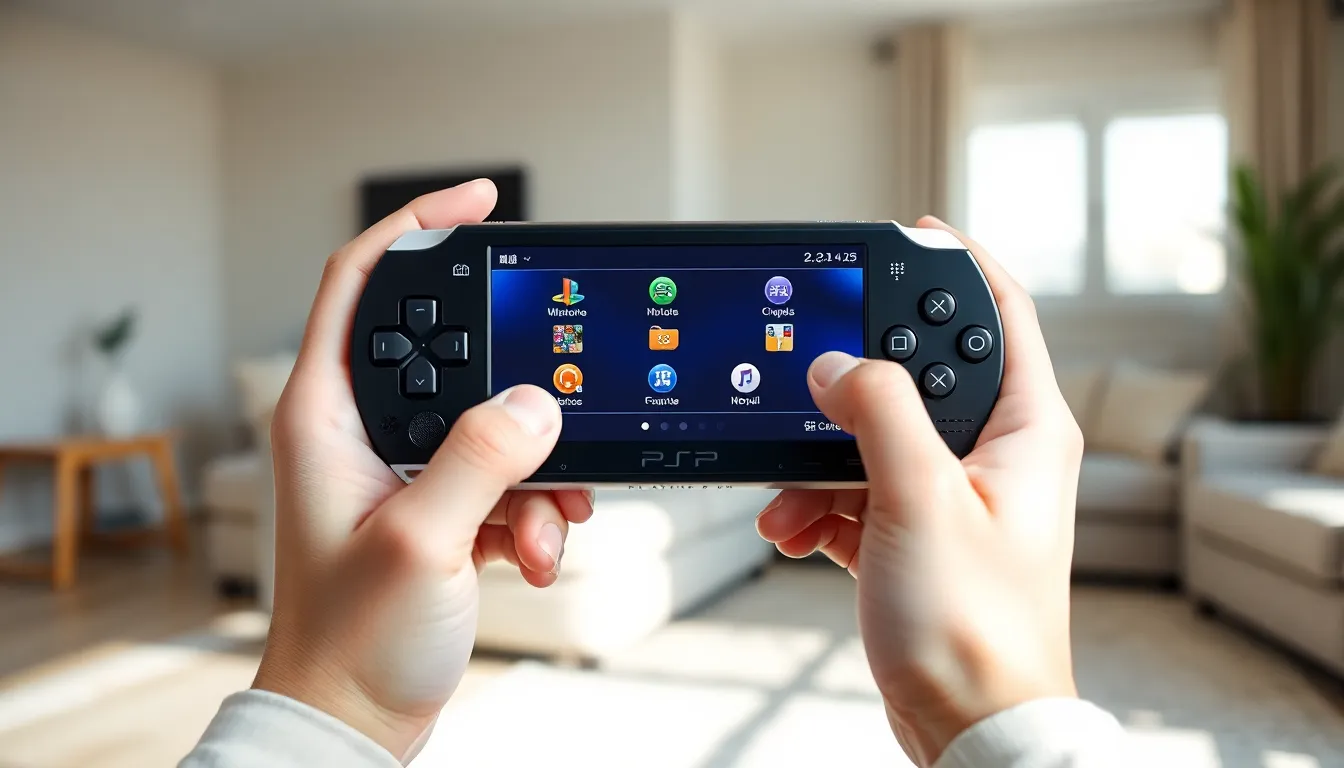
Learning how to use a PlayStation Portable opens up a world of gaming and entertainment that remains impressive even today. Sony’s PSP launched in 2004 and quickly became one of the best-selling handheld consoles of all time. The device plays games, movies, music, and photos, all on a beautiful widescreen display.
Whether someone just found a PSP in a drawer or picked one up secondhand, this guide covers everything they need to know. From initial setup to troubleshooting common problems, new users will be playing games and enjoying media in no time.
Table of Contents
ToggleKey Takeaways
- Learning how to use a PlayStation Portable starts with charging the battery fully and completing the simple setup wizard for language, time, and nickname.
- The PSP uses the XrossMediaBar (XMB) interface to navigate categories like Games, Music, Video, and Settings using the D-pad.
- A Memory Stick Pro Duo is essential for saving game progress, storing music, and downloading content on your PlayStation Portable.
- You can play MP3 music and MP4 videos by creating “MUSIC” and “VIDEO” folders on the memory stick and copying files there.
- If your PSP won’t turn on or read UMDs, try charging for 30 minutes, reseating the battery, or cleaning the disc from center to edge.
- The PlayStation Portable only supports older Wi-Fi protocols like WPA2-PSK, so modern routers may need settings adjusted for connectivity.
Getting Started With Your PSP
Before diving into games, users need to set up their PlayStation Portable correctly. The process takes just a few minutes.
Charging the Battery
The PSP uses a proprietary charger that connects to the bottom of the device. Users should charge the battery fully before first use, this typically takes about two hours. The orange light turns off when charging completes.
If the PSP has been sitting unused for years, the battery may no longer hold a charge. Replacement batteries are available online for around $10-20.
Powering On
The power switch sits on the right side of the PSP. Slide it up and hold for about two seconds. The screen will light up and display the PSP logo.
First-time users will see a setup wizard. This wizard asks for:
- Language preference
- Time zone
- Date and time
- Nickname (for multiplayer games)
Inserting a Memory Stick
The PlayStation Portable uses Memory Stick Pro Duo cards for storage. The slot is located on the left side, behind a small plastic door. Push the card in until it clicks.
Without a memory stick, the PSP can still play UMD games. But, users won’t be able to save game progress, store music, or download content.
Navigating the XMB Menu System
Sony’s XrossMediaBar (XMB) interface powers the PlayStation Portable’s menu system. It’s the same interface used on PlayStation 3, so it may look familiar to some users.
Understanding the Layout
The XMB displays categories horizontally across the top of the screen. Each category contains vertical lists of options below it. Users press left or right on the D-pad to switch categories and up or down to select items within a category.
The main categories include:
- Settings – System configuration options
- Photo – View images stored on the memory stick
- Music – Play MP3s and other audio files
- Video – Watch movies and video content
- Game – Access games and saved data
- Network – Wi-Fi and internet features
Basic Controls
The X button confirms selections on the PlayStation Portable. The Circle button goes back. Triangle opens additional options for highlighted items. These controls become second nature quickly.
The Home button (with the PlayStation logo) returns users to the XMB from any game or application.
Playing Games and Media
The PlayStation Portable shines as both a gaming device and a portable media player. Here’s how to use both functions.
Playing UMD Games
UMD (Universal Media Disc) games come in small plastic cases. To insert one:
- Open the disc tray on the back of the PSP
- Place the UMD with the label facing away from the screen
- Push gently until it clicks into place
- Close the tray
The game will appear under the Game category in the XMB. Select it and press X to start playing. The PSP’s library includes over 800 games, from classics like God of War and Monster Hunter to sports titles and RPGs.
Playing Music
Users can load MP3 files onto their memory stick using a computer. Create a folder called “MUSIC” in the root directory, then copy audio files there. The PlayStation Portable will recognize them automatically.
Supported formats include MP3, AAC, and ATRAC3. Most people stick with MP3 since it works with everything.
Watching Videos
The PSP plays video files in MP4 format. Users should create a “VIDEO” folder on the memory stick and place files there. The device’s widescreen display makes it surprisingly good for watching movies, even by today’s standards.
Essential Settings and Features
A few key settings will improve the PlayStation Portable experience significantly.
Adjusting Brightness
The display button (above the D-pad) cycles through brightness levels. Higher brightness drains the battery faster, so users should find a comfortable balance. The PSP offers four brightness levels in most situations.
Connecting to Wi-Fi
The PlayStation Portable supports Wi-Fi for multiplayer gaming and internet browsing. To connect:
- Go to Settings > Network Settings
- Select Infrastructure Mode
- Create a new connection
- Scan for access points
- Enter the Wi-Fi password
Note that the PSP only supports older Wi-Fi security protocols. Modern routers may need their settings adjusted to allow connections. WPA2-PSK typically works, but WPA3 does not.
Power Save Settings
Under Settings > Power Save Settings, users can configure automatic sleep timers and Wi-Fi power management. These options help extend battery life during long play sessions.
Parental Controls
The PlayStation Portable includes parental controls under Settings > Security Settings. Parents can restrict games by rating level and disable internet access. A four-digit password protects these settings.
Troubleshooting Common Issues
Even well-maintained PSPs encounter problems. Here are solutions for the most frequent issues.
PSP Won’t Turn On
If the PlayStation Portable won’t power on, try these steps:
- Charge the battery for at least 30 minutes before attempting again
- Check that the battery is properly seated
- Try removing and reinserting the battery
- Test with the AC adapter connected directly
If none of these work, the battery likely needs replacement.
UMD Won’t Read
Dirty or scratched UMDs cause reading errors. Clean the disc with a soft cloth, wiping from center to edge. If the problem persists, the UMD drive laser may need cleaning. Compressed air can remove dust from the drive opening.
Stuck Pixels
Some PSP screens develop stuck pixels over time. Running a pixel-fixing video (available online) for a few hours sometimes resolves this issue. Persistent stuck pixels are usually permanent, unfortunately.
Memory Stick Errors
If the PlayStation Portable doesn’t recognize a memory stick:
- Remove and reinsert the card
- Try formatting it (Settings > System Settings > Format Memory Stick)
- Test with a different memory stick to rule out slot damage
Formatting erases all data, so back up important files first.

